Basic features
This page contains an introduction to the basic features of ETJump.
Under construction
This page is a work in progress. The old “Getting Started” page was split into three separate pages without much of new content. This will be filled with more information in the future.
Position saving and loading
ETJump offers players to ability to save and load their position. It’s recommended to bind these keys to conveniently available buttons, such as mouse4/5 or q/e for easy access, as you will be needing them often.
By default when you load a saved position, your viewangles are restored to match the angles you had when saving. Some players find this distracting, and it can be turned off by setting the etj_loadviewangles cvar to 0.
Tip
Saves are unique per team. A saved position created while playing on Allies cannot be loaded while playing on Axis.
Tip
There are 3 different saveslots available for each team, which can be accessed by typing save/load 0/1/2. By default, slot 0 is used.
Speed meter
ETJump offers you two different speed meters to see how fast you’re going. These are both visible by default.


Both of the speed meters have several customization options.
etj_drawspeed
etj_drawSpeed2
Tip
It’s also possible to display your momentary max speed. Refer to etj_drawMaxSpeed.
Hiding & drawing other players
Collision with other players is disabled in ETJump by default. Because of this, it’s often desired to hide other players, to prevent them from blocking your view. This is enabled by default, and can be toggled with the etj_hide cvar.
Tip
If you don’t want other players to see you even when player hiding is disabled, you can enable the etj_hideMe cvar.
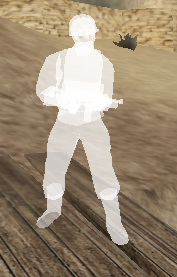
It’s also possible to draw other players using a simple, single colored shader by enabling the etj_drawSimplePlayers cvar.
Pressed keys view
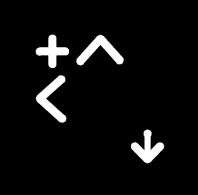
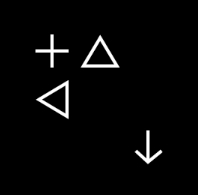
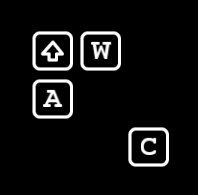
You can see what movement keys you are pressing by enabling etj_drawKeys. This also works while spectating other players, which is a great way for new players to learn some of the more advanced techniques from more experienced players. You can choose one from the following keysets.
Keyset |
Value |
|---|---|
|
|
|
|
|
|
|
|
|
|


Teleporting (to) other players
You can teleport to a location of another player on the server by using the goto command. Similarly, you can teleport other players to your location using the call command.
Chat features
The chat in ETJump offers a lot of new features. You can add timestamps to chat messages, expand it to show more than 8 messages, change the size and position and move it around freely.
The chat also supports a mentioning systen. You can tag players by typing a part of their name inside at signs, e.g. @name@. This marks the chat message for the tagged client and plays a notification sound.
THe full list of customization available is the following.
Chat replay
ETJump has a chat replay system, which replays the latest global chat messages to clients when they connect to a server, perform a vid_restart or when the map is changed. Messages sent prior to your initial connection to server are time-limited by default for privacy reasons - this is controllable by server admins with g_chatReplayMaxMessageAge cvar, which defaults to 5 minutes. Any messages that are sent after your session has started are always replayed to you.

Tip
You can turn off the replay on client side with
etj_chatReplaycvar. This means you won’t see chat replays, but it does not prevent your messages in appearing in the replays sent to other players.Server owners can also turn off chat replay entirely on the server with
g_chatReplaycvar.
Private messages
You can send private messages to other players by typing /m <name|clientnum> <message> in the console.
Note
Private messages are sent to all players who’s name match <name> partially. If you want to make sure you’re only sending the message to a single client, it’s safer to use <clientnum>.
If playing with ET: Legacy client, you can enable window flashing for incoming private messages if the game is minimized by setting the bit 2 on etj_highlight.
Fireteams
Fireteams in ETJump are team-agnostic, meaning there are no restrictions on which team the members of the fireteam are allowed to be in. Fireteams provide additional functionality to the gameplay by allowing players to enable features only for the members of the fireteam.
Rules
Fireteam members can set “rules” amongst themselves. The available rules are following:
noghost- fireteam members can toggle player collision between the members.savelimit- fireteam members can limit the number ofsavecommands each member is allowed to use.
Teamjump mode
When teamjump mode is enabled, target_ftrelay entity activates targets for each of the fireteam members.
See also
HUD drawing
A lot of the standard HUD elements are not important while playing ETJump, and can be hidden with the following cvars.
Portal gun
ETJump includes a portalgun for players to use. It can be found in weaponbank 9. Firing the secondary portal is done with +attack2 instead of weapalt.
Tip
To ease the portalgun usage, you can use etj_autoPortalBinds cvar.
Note
Depending on the map and server settings, portalgun might be disabled, as it’s quite exploitable on a lot of maps.
Portal gun mechanics
After placing two portals, touching a portal will teleport you to the other portal you have placed. Any speed you have at the time of teleportation will be transfered to the exit portal, and an additional 50ups speed boost is given.
Note
The transfered speed includes all speed, not just horizontal or vertical!
Because the transfered speed is the total amount of speed on all axes, this has implications on how portals behave on certain scenarios. For example, falling from the same height (meaning identical vertical speed) with 0ups horizontal speed will result in less speed at the exit portal, compared to falling with 500ups horizontal speed. This can be a highly influential factor on some portal jumps!
Some maps restrict the surfaces where portals can be placed. This is usually done by visual indicators by the mapper, however there is no standard, built-in way to see which surface accepts a portal. Maps might also deploy func_portaltarget entities. These are special entities intended to make portal jumps more consistent, by always centering a portal on a surface, regardless of where the portal was fired exactly.
Other players’ portals
Normally, players are only able to use their own portals. However, this can be changed by a map with the usage of portalteam worldspawn key.
If
portalteamis set to 1, you can also use portals placed by your fireteam membersIf
portalteamis set to 2, you can use any portals placed by anyone
Both portals are still required to be shot by the same player for the teleportation to work. For example, player A cannot shoot a primary portal which would teleport them out a secondary portal placed by player B.
When portalteam is enabled, you may not shoot portals on places where another player has already placed a portal, if you are able to also use that portal. In practice, this means that with portalteam 1, you cannot overlap portals with your fireteam members, and with portalteam 2, you can never overlap portals with any other player. This is to help ambiguity on which portal gets activated, if two portals were overlapping.
Tip
Portals fired by other players display in different colors - blue portals are drawn in green, red portals in yellow.
To avoid confusion with which portals you can use,
etj_viewPlayerPortals 0will display only the portals that you are able to use.
Timeruns
Some maps feature timeruns. They work exactly as you’d expect - go from start to finish as fast as possible. Timerun records are saved on the server and can be viewed using the ranks command. There is no central, mod-wide database for records - each server has it’s own records database.
Timeruns might also contain checkpoints. These are optional and are used to simply give better indication to the player how well their run is going. Finishing a timerun does not require hitting checkpoints in a particular order, nor do you have to hit all of them (though these can be enforced by the map via other means such as trackers).
Timeruns can be viewed as the “competitive” side of ETJump. Because of this, there are several restrictions with them.
Note
If cheats are enabled, timeruns start normally, but records are not saved. The restrictions below do not apply when cheats are enabled.
Timerun records are not saved when tracker debugging is enabled.
Timeruns cannot be started if player is noclipping or using godmode, and neither can be used during a timerun.
Timeruns cannot be started if player has used
nocliporsetoffset, setpmove_fixed 0or enabledfireteam noghostwithout respawning afterwards.pmove_fixed 0and/orfireteam noghostmight be allowed on some timeruns.
Timeruns cannot be started if player has non-zero roll angles.
In addition to the above, a timerun might pose additional restrictions on it via entity spawnflags, see target_starttimer for details.
Starting a timerun also performs several actions to the player in order to prevent cheating.
Note
The actions mentioned below are not performed if cheats are enabled.
Removes explosive weapons and flamethrower.
Removes all projectiles and mines of the activator.
Removes portalgun and clears any existing portals.
Clears all save slots and backups (unless the timeruns specifies
NO_SAVEspawnflag) that were made during a previous timerun.
Rankings
Timeruns award points for completion. The ranking system, like timerun records, is per-server, no global leaderboards are available. The rankings can be viewed using the rankings command. Points are awarded using the EESystem, made for the DeFRaG World Cup (minus the Nascar clause). This system, unlike regular ELO ranking, encourages players to participate in as many timeruns as possible, rather than to focus on getting a perfect run on few runs and “protect” their ranking by not playing unless they are sure they can perform well on a run.
Seasons
The timerun system supports “seasons”. These can be managed on a server by admins, using !add-season, !edit-season and !delete-season commands. Seasons include a start date, and optional end date, and store their own timerun records and rankings. This system can be used to for example host timed competitons.
Custom votes
ETJump offers a per-server custom vote system, which allows server owners and priviledged admins to add, edit and delete lists with specific maps on them. These lists can be voted by players via the in-game menu, or via console using callvote <randommap|rtv> <name> command.
It’s possible to vote for a random map from a list, or call a Rock The Vote with only maps from the specified list.
Setting up custom votes
Custom vote lists are defined in a file defined by g_customMapVotesFile. An example file can be generated by running generateCustomvotes command on the server. The custom vote file is a JSON file with the following format:
[
   {
      "name" : "list1",
      "callvote_text" : "My List 1",
      "maps" : [ "map1", "map2", "map3" ]
   },
   {
      "name" : "list2",
      "callvote_text" : "My List 2",
      "maps" : [ "map1", "map2", "map3" ]
   }
]
If editing the custom vote lists manually, it is necessary to either change map, or use readCustomvotes command on the server to apply the changes. Editing the lists via admin commands automatically reloads the lists.
Note
Custom votes perform no validation on the map names, it is up to the server owners/admins to ensure the map names are correct. Any maps that are not on the server will be ignored in the voting.
Rock The Vote
Players can initiate a Rock The Vote (RTV) on a server, to select a random set of maps to be voted for as the next map. RTV can be called via the in-game menu, or with callvote rtv command. When RTV is called, players can open the list of votable maps by pressing vote yes binding, and pick a map to vote for from the opened list.
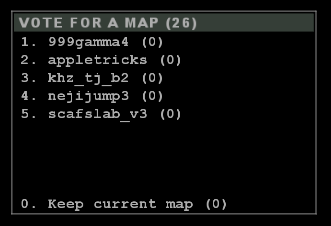
After the vote has concluded, the map with the most votes will be picked. If two or more maps end up with the same amount of votes, the winner is chosen randomly from those maps.
Tip
RTV can be disabled on the server with
vote_allowRtvcvar.The number of maps to pick from can be changed on the server with
g_rtvMaxMapscvar.RTV minimum vote time is separate from regular votes, and can be configured with
vote_minRtvDurationcvar.
Auto RTV
It’s possible to configure RTV to be automatically called by the server at specific intervals. If g_autoRtv is set, the server will automatically call RTV when a map has been running for the specified time. Players can call a vote to adjust the interval, or to turn the feature off completely.
Tip
Auto RTV interval does not progress if the server is empty or nobody is playing. Only after a player joins a team for the first time during a map, the timer starts progressing, and keeps going until the interval is reached.
Auto RTV interval voting can be turned off with
vote_allowAutoRtv, leaving the setting to be configured only by the server owners.
Quick connect menu
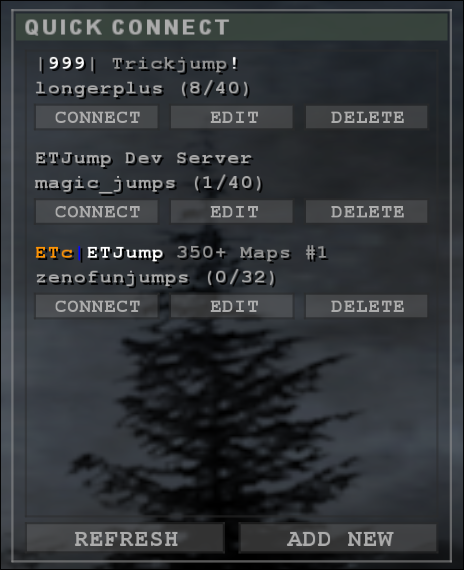
In the main menu, players may add up to 5 servers to the quick connect window. This provides easy, 1-click connect to a saved server. The list shows the server name, current map and player count for each server.
Note
The list is not automatically refreshed upon starting the game.
You may also give a custom name for a server on the list. If left empty, the list will default to the hostname of the server. If the server is password protected, you can set a password for the server as well.
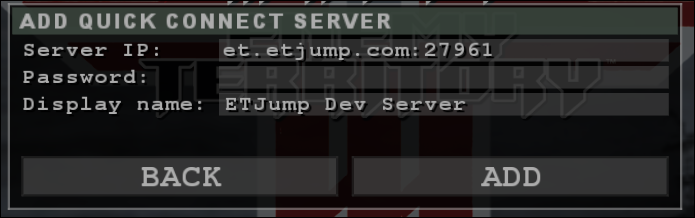
The quickconnect.dat is a standard JSON file, so it can be edited by hand outside of the game. This however is not officially supported - in case of issues, please do not file a bug report unless the issue can be replicated by editing the file in-game.
[
   {
      "customName" : "",
      "ip" : "et.etjump.com",
      "password" : "",
      "serverName" : "^9|^7999^9| Trickjump^7!^9"
   },
   {
      "customName" : "ETJump Dev Server",
      "ip" : "et.etjump.com:27961",
      "password" : "",
      "serverName" : "^7ETJump ^gPublic DEV Server"
   },
   {
      "customName" : "",
      "ip" : "84.200.135.3:27963",
      "password" : "",
      "serverName" : "^8ETc^4|^7ETJump ^9350+ Maps #1"
   }
]
Tip
If you ever need to backup your quick connect server data, the saved servers are stored in etjump/quickconnect.dat.
Caution
If you ever want to share the quickconnect.dat file with someone, be aware that any passwords you have saved for the servers are stored in plaintext in this file!